
Go to Start > Run and type in: services.msc , and hit enter.Scroll down to "Windows Audio", right-click on it and select Properties, set the startup type to Automatic, click Apply and then click the Start button.
Solution 2:
Computer was giving the error “no active mixer devices available” whenever they clicked on the volume icon in their task bar. This problem came up out of nowhere and it was almost of if the computer never had sound before! In the Sound and Audio Devices applet in Control Panel, everything was grayed out and there was a message saying “No audio device” under the Volume tab
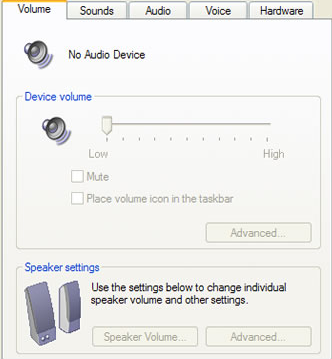 Upon checking under the Hardware section via the System Properties, we found a couple of yellow exclamation points next to Multimedia Audio Controller. Now this issue would have been easy to fix if the computer had a separate sound card installed and would have simply involved downloading and re-installing the latest drive for the card. Sometimes the driver becomes corrupt and the sound disappears. In this case, just go to Dell, HP, or your manufacture’s web site and download the audio drivers.
However, if your sound card is integrated into your motherboard, you’ll have to re-install the motherboard sound drivers. This is a little trickier because you need to first find the make and model of your motherboard. You can figure out the model of your motherboard in three ways:
1. Open the computer and find the sticker or embedded name of the manufacturer. Be sure it’s not the maker of the chipset, as that will not help.
2. Everest software – a free app that will help you identify your motherboard.
3. Belarc Advisor – Another nifty little app that will give you a crap load of information about your computer including the motherboard.
Once you have the model information, you’ll need to perform a search for the number or try to go to the web site of the maker. Find your driver, install it and restart the computer. You should now have your sound back!
Any questions, post a comment!

This can also happen because of VIRUS, first scan your computer using symantec client antivirus.
ReplyDelete